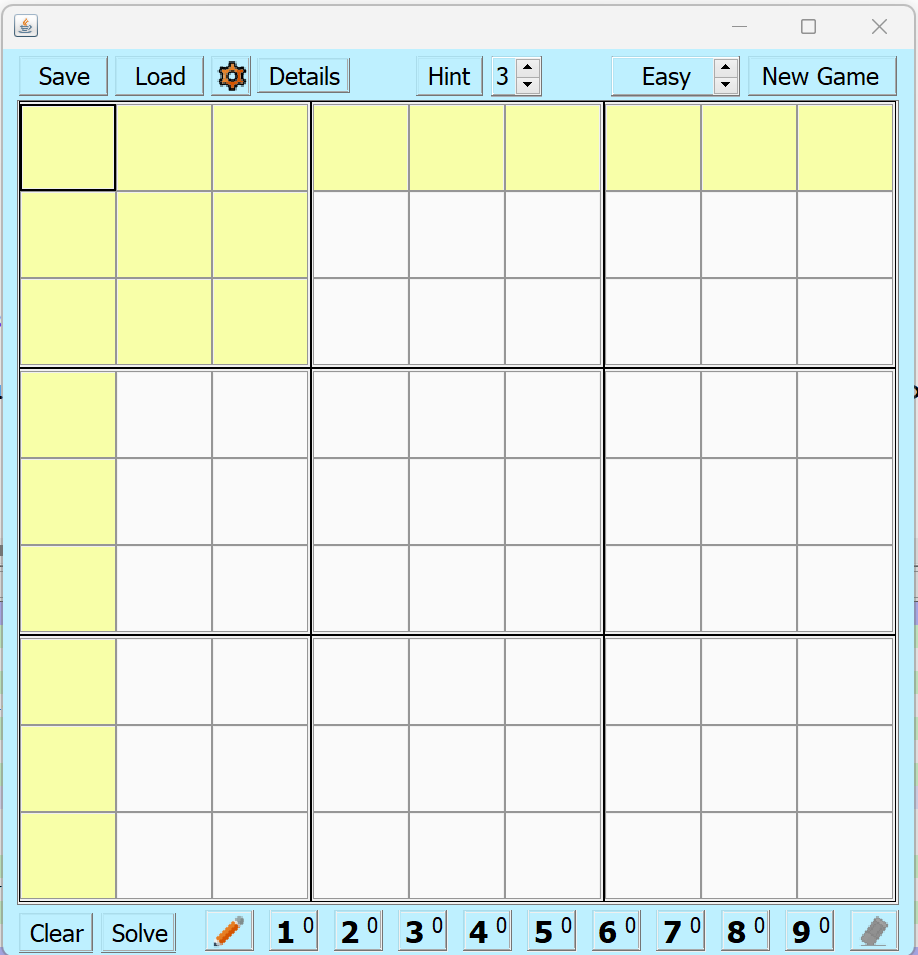
To get started, select a Game level (Easy, Medium, Hard or Extreme), then press "NewGame".
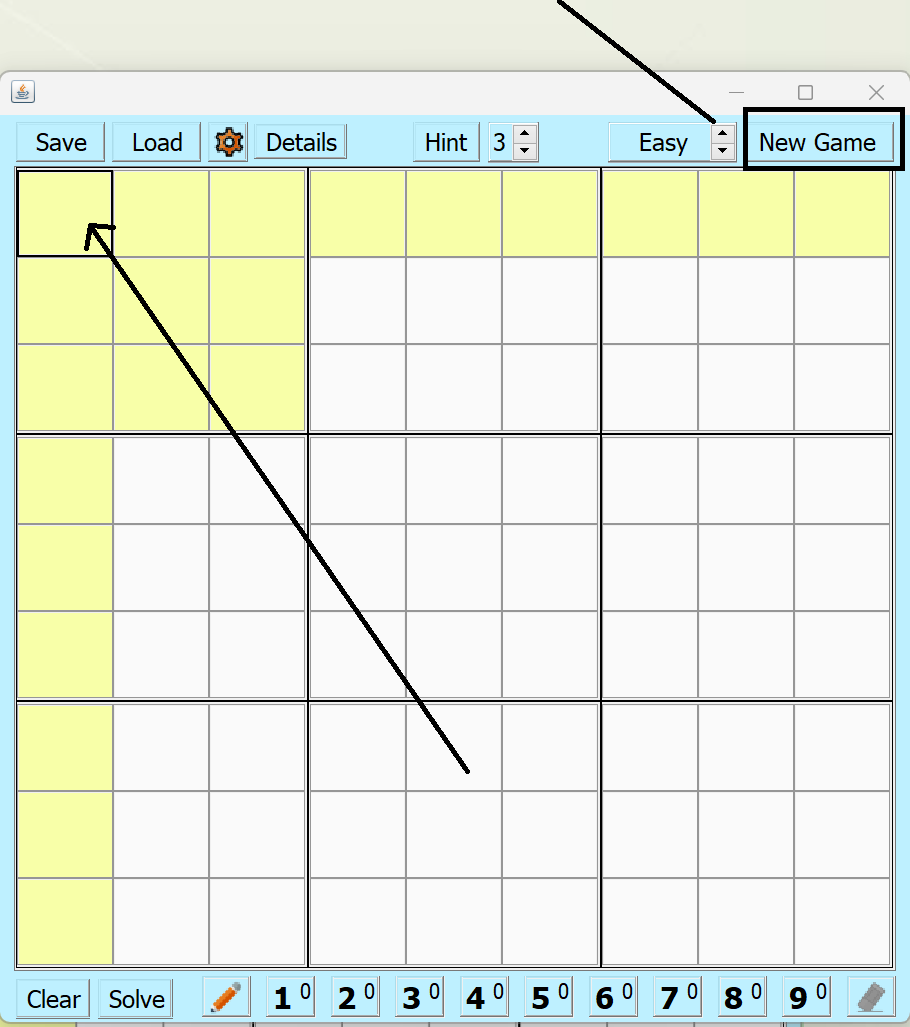
As one selectes a cell, the program highlights the purview of that cell in yellow (meaning, this is the region the number has to be unique inside).
'New Game' will get to the basic starting point of any Sudoki puzzle, as shown below.
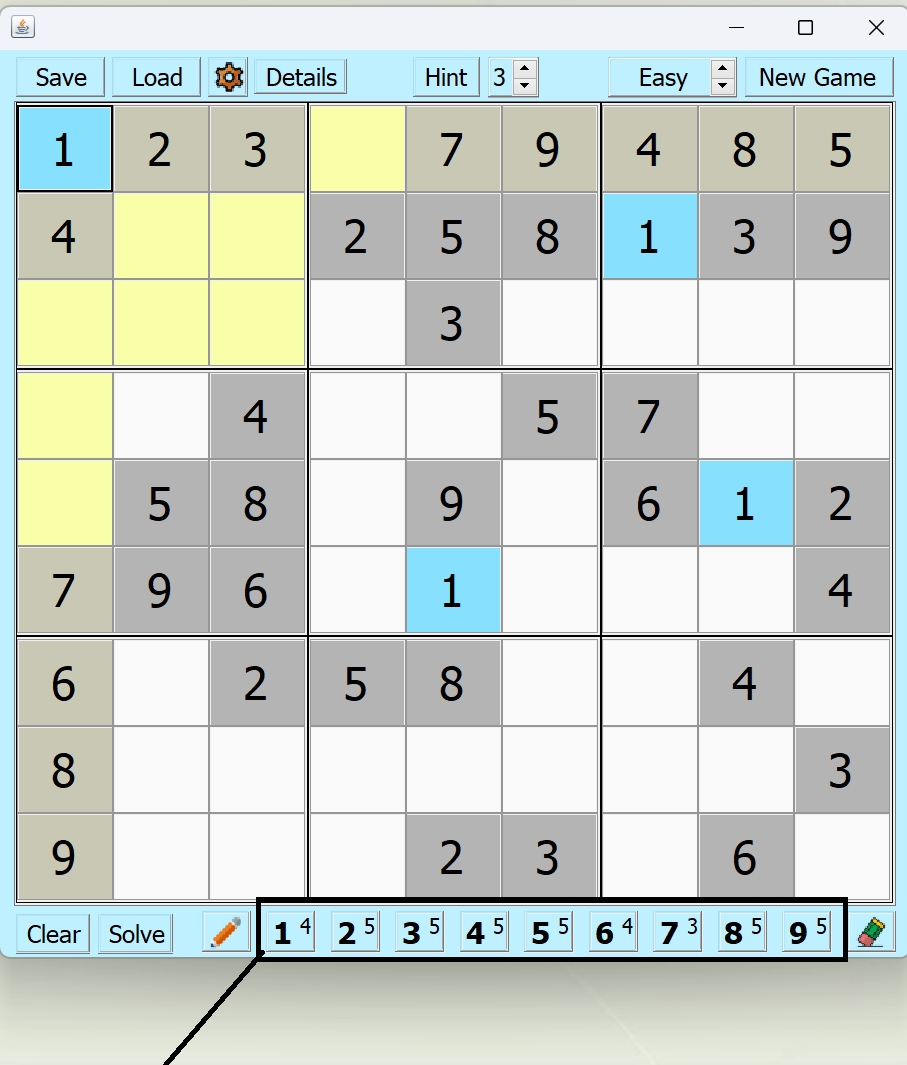
Use the button keys to enter values into cells. Click on a cell to make it the active cell. With the desktop version, you can use the arrows keys to navigate as well.
The 'gear' button will bring up a dialog allowing a bit of customization.
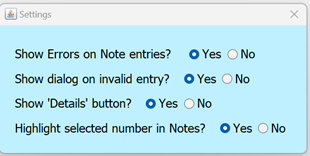
One can set 4 options: whether or not to show invalid Note entries (more on that a bit later), show a dialog every time you enter an invalid number (meaning, it's already being used), show/hide the 'Details" button (which allows you do peek at the answer!), or highlight Notes, which will highlight Note entries as it does normal cell entries matching the currently selected number (in blue).
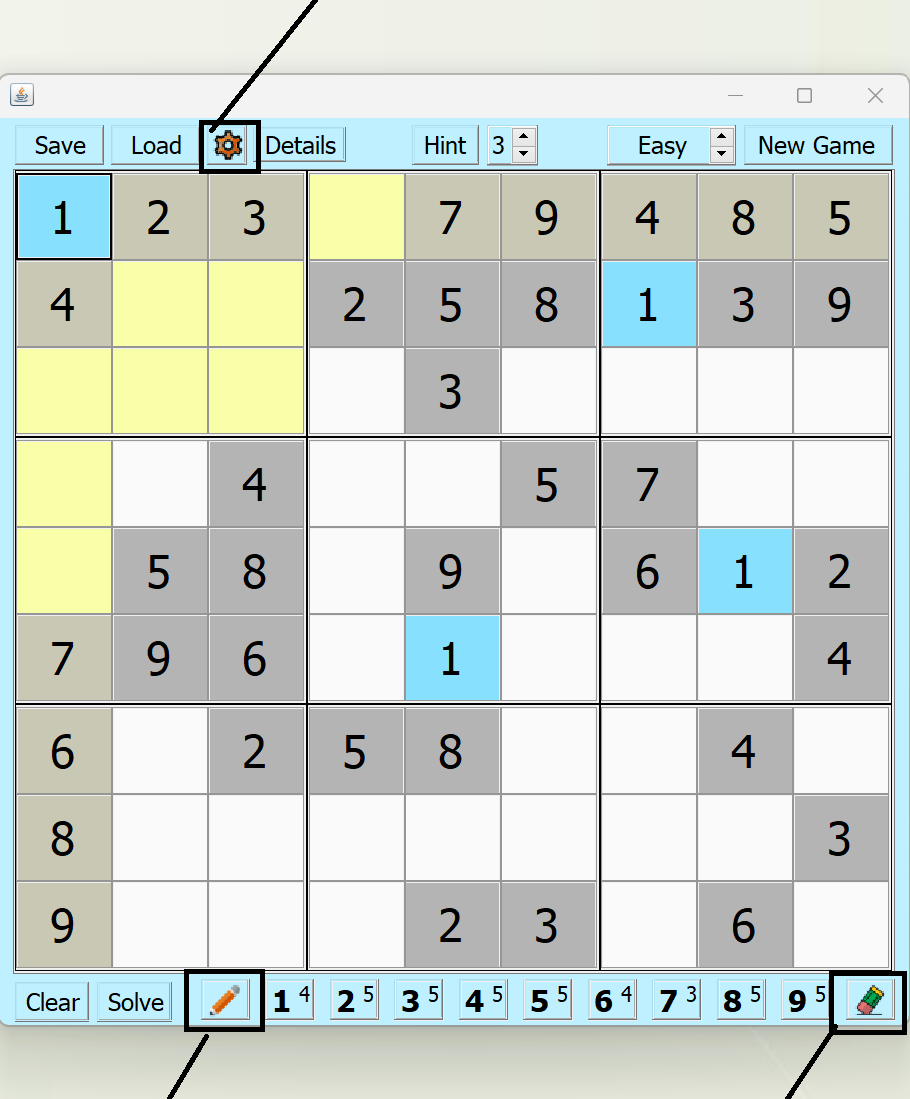
The special button on the left allows one to switch between 'play' mode and 'note' mode. The icon changes from a pencil for 'note' mode, to a 'musical note for 'play' mode. In 'play' mode, entering a number puts that number into the active cell. In 'note' mode, it allows one to make a note of values that may be valid for a particular cell as an aid to solving the puzzle.
The 'eraser' button does just that, erases the number in the active cell.
The 'hint' button lets the program fill in some obvious answers for you (if there are any at this point in the game), specifically cells in Sudoko known as single-answer cells. These are cells which can only have 1 answer. The number selector next to the 'hint' button is the number of time the program should run through the board looking for single-answer cells. Obviousley, each time one is found, there is the potential for more to be found since there would be less open cells after finding one, or more during a pass through the board.
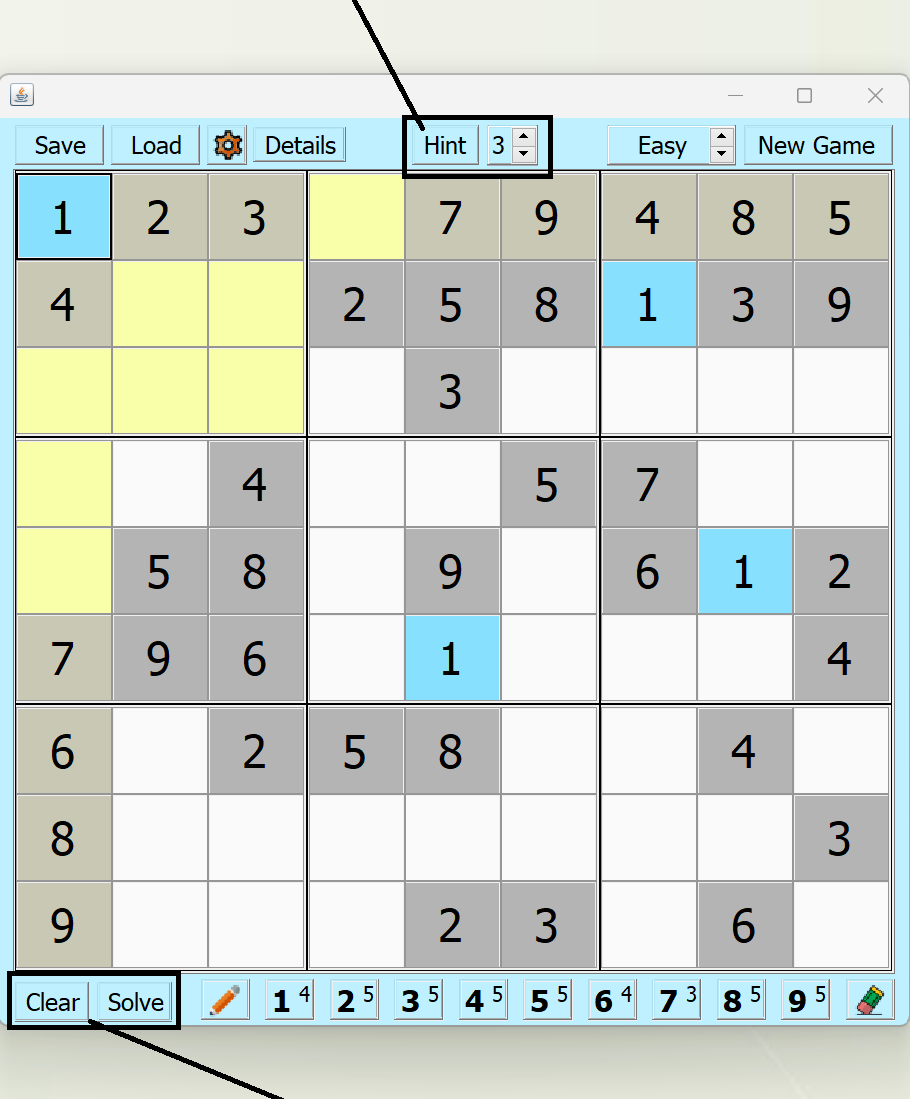
The 'clear' button will remove any answers entered by you or the program via the 'hint' function, allowing you to start the puzzle fresh, without starting a new game. The 'solve' button will show the answer in the grid.
If your version has a 'Peek' button (or 'Details'), this will pop up a small dialog box showing the answer in a simple 9 x 9 grid. If you want to remove the temptation, this button can be disabled in 'Settings'.
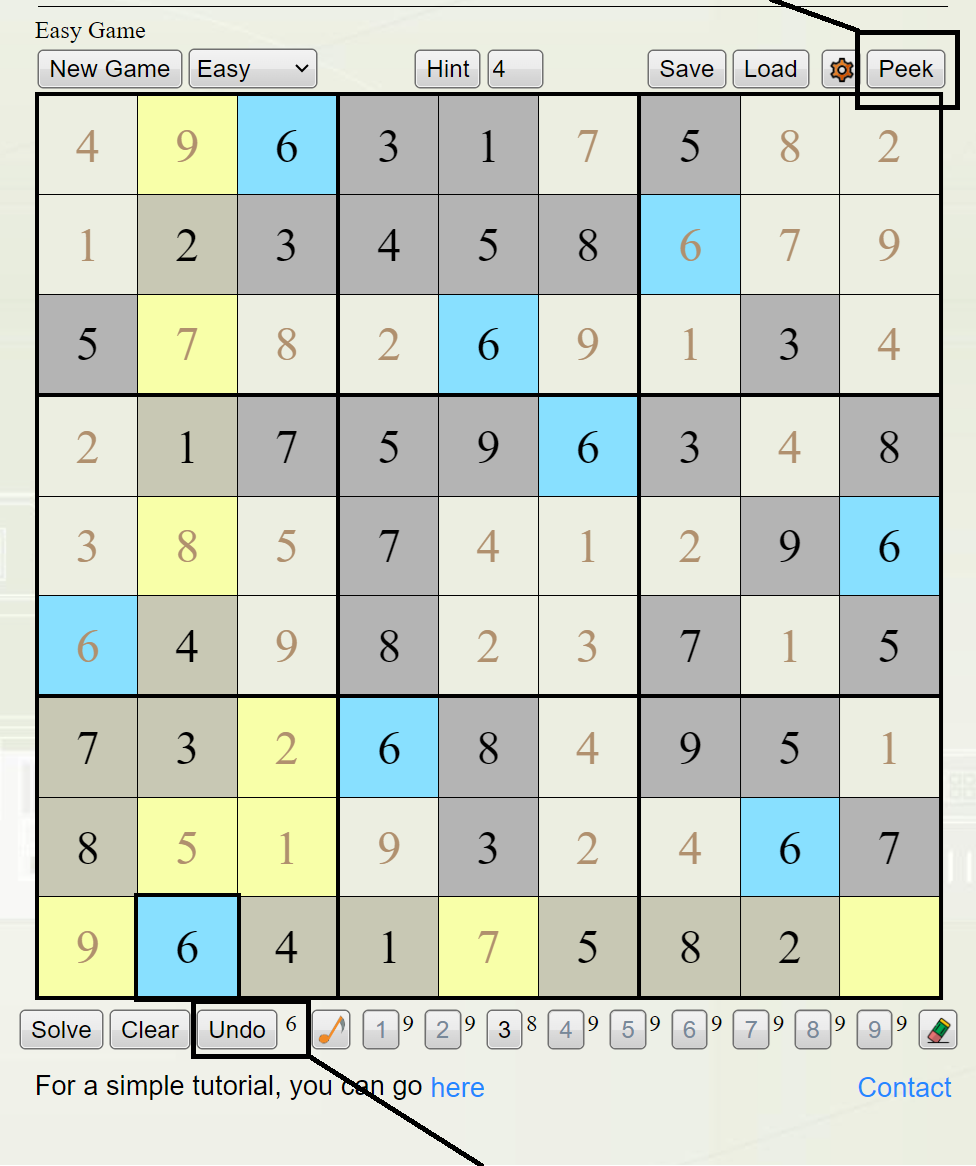
If your version of the game has an 'Undo' button, this will allow one to backspace through the game removing numbers in the reverse sequence from which they were entered. This is mostly helpful when you get a point where the game is unwinnable bacause a mistake has been made. The little number next to the button is the next number to be undone. If there is no number, then there is nothing to 'Undo'.
And finally....
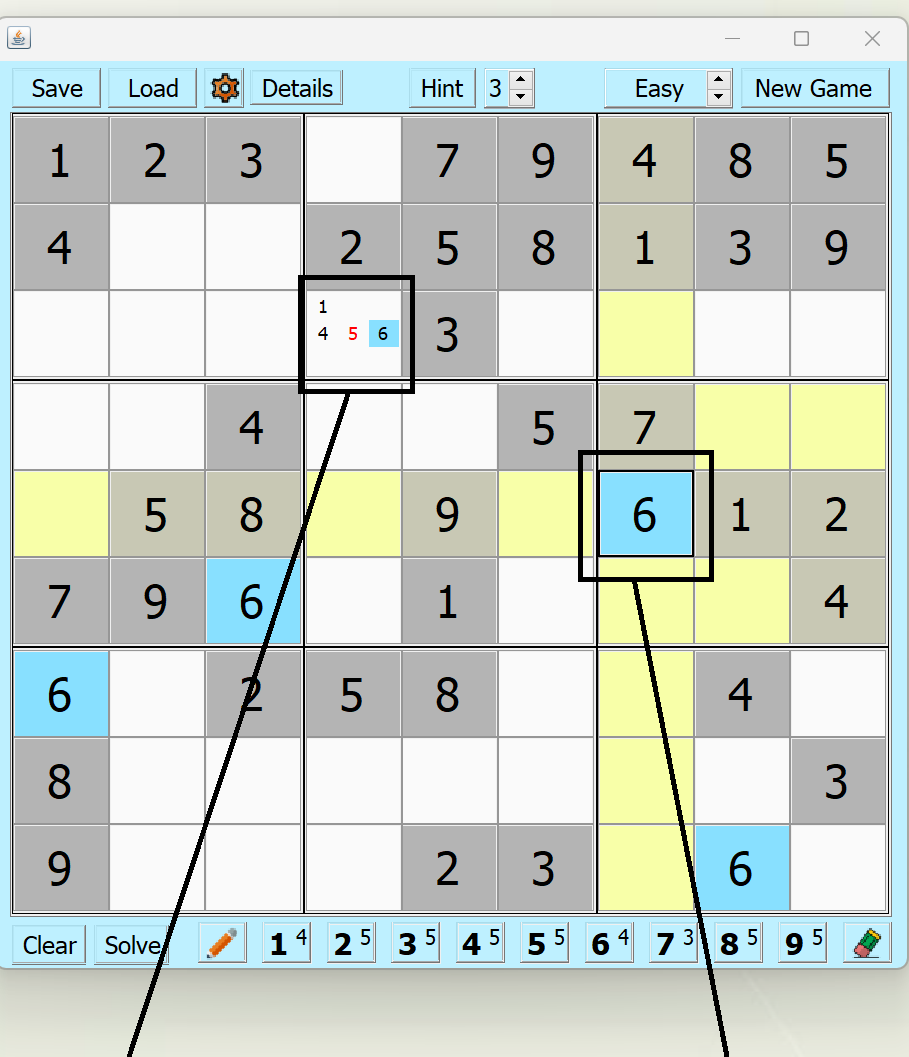
Here one can see notes have been entered. The currently selected cell has the number '6', so all cells with the number '6' are highlighted in blue, including the note. Additionally, one can see one of the notes is 'red' indicating '5' would be an invalid entry since '5' is already in the purview of this cell. To turn a note off, simply select the number again.
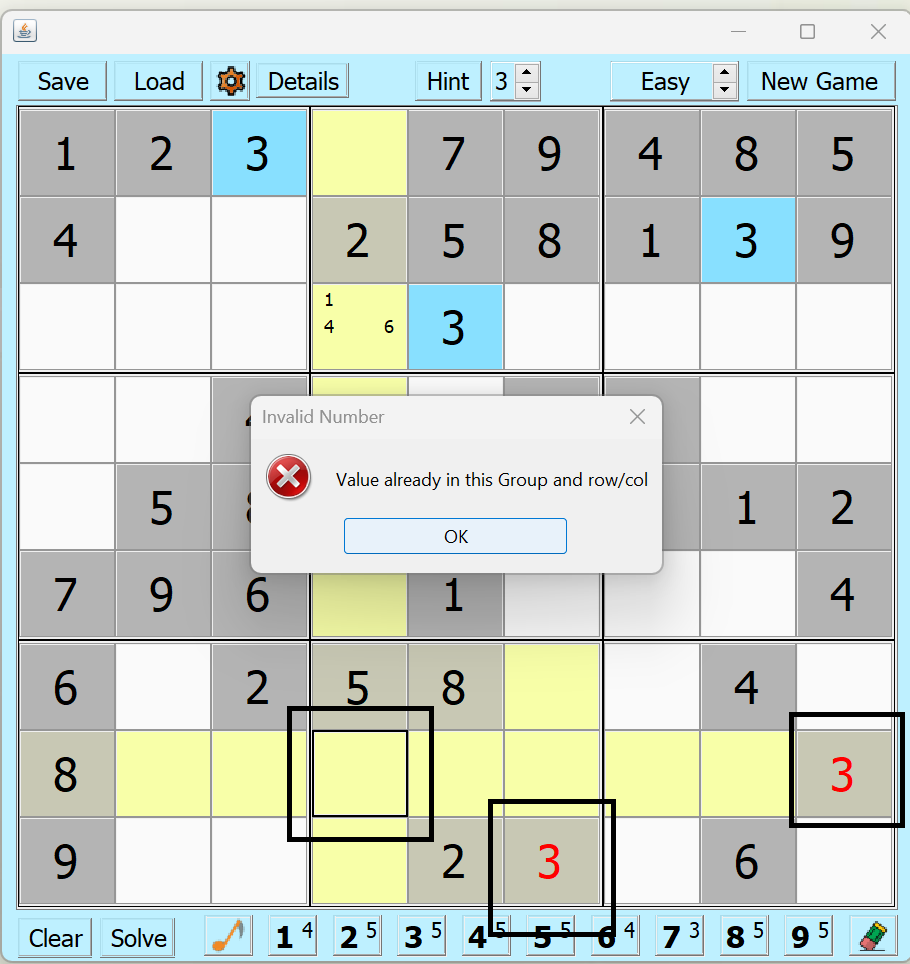
If one tries to enter an invalid number, for example below, '3' was attempted in the selected cell. The program highlights the reason the '3' is invalid for that cell in 'red'.